Last updated September 24, 2026
Quick start
ClockOut has two sides. Owners, admins, and managers work in Manage: the team view with schedules, approvals, and payroll. Everyone has My time: their own clock, schedule, timesheet, and requests. Admins switch between the two with Switch to my time and Switch to manage at the bottom of the sidebar.
Set up your company
Verify your email, set pay rules, add your people, and build the first schedule.
Clock in on day one
Open your setup link, get the app from the store or your browser, allow location, and tap Clock in.
Get the app on your phone
Two ways to get ClockOut on a phone, and both sign in to the same account.
- Native app. Install ClockOut Time Clock by Ophy Labs from the App Store (iPhone) or Google Play (Android). It adds Face ID or passcode lock and a lock-screen shift timer on iPhone. Apps named ClockOut from other developers are unrelated.
- Web app. ClockOut also runs in any phone or desktop browser at useclockout.com. Adding it to your home screen makes it open full screen, and turns on push notifications and offline clock in. Pick your phone below.


- 01Open useclockout.com in Safari. Tap the ⋯ menu button in the bottom-right corner.
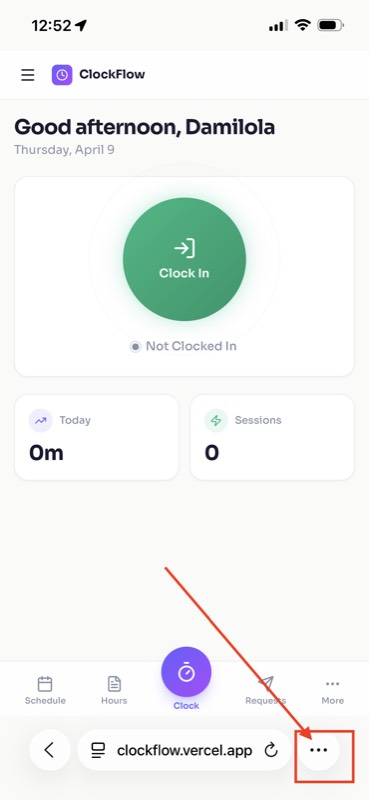
- 02Tap Share in the menu that appears.
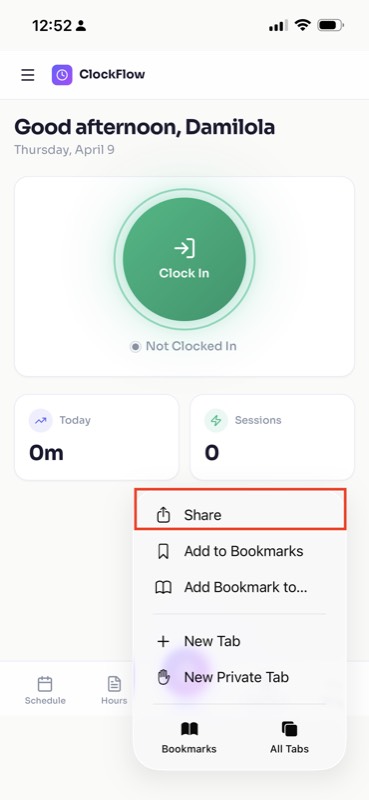
- 03Scroll down and tap Add to Home Screen.
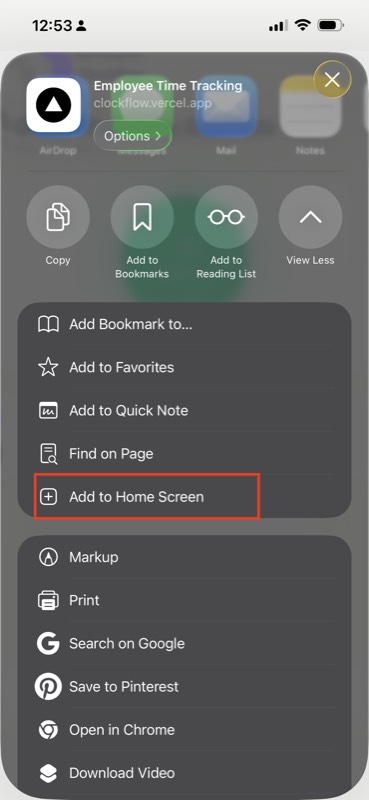
- 04Tap Add in the top-right corner. Keep the name as ClockOut.
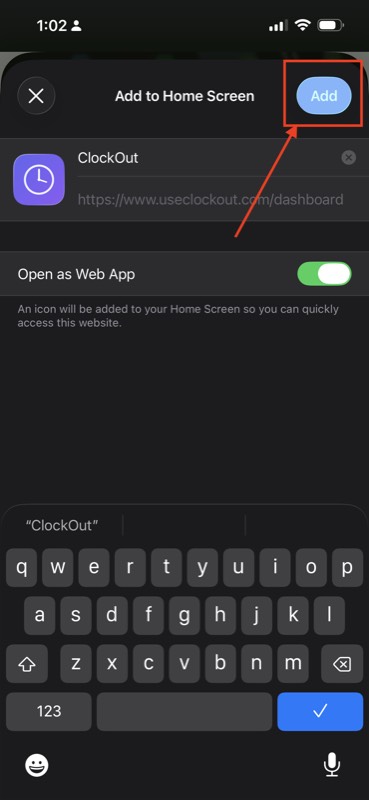
- 05The ClockOut icon appears on your home screen, just like a regular app.
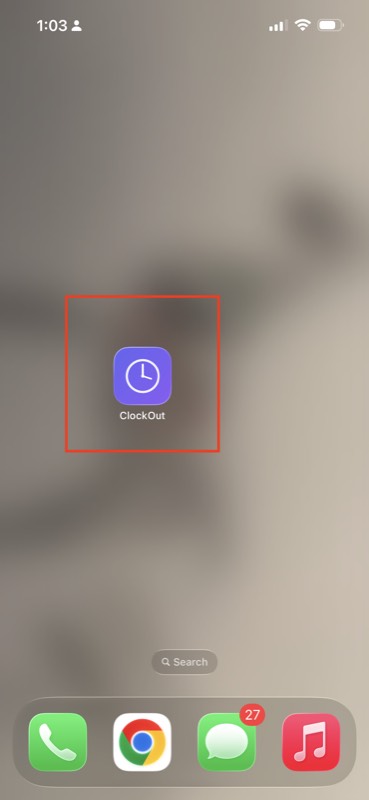
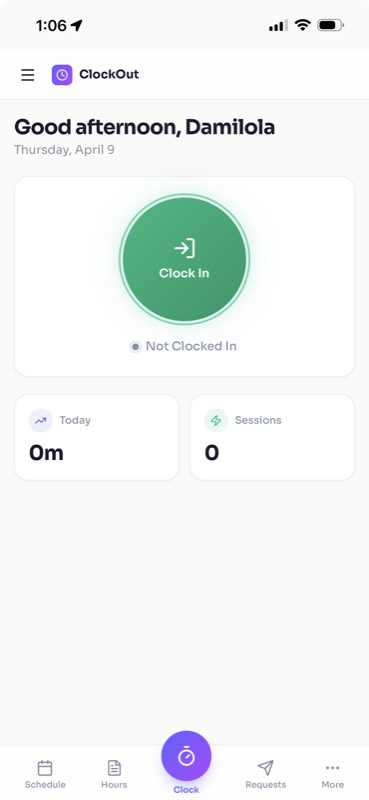
- 06Tap the icon to open ClockOut full screen, with no browser bar.
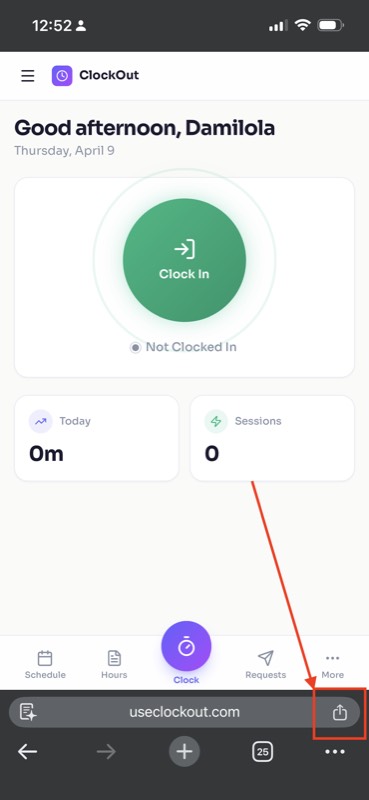
- 01Open useclockout.com in Chrome. Tap the share icon at the right of the address bar.
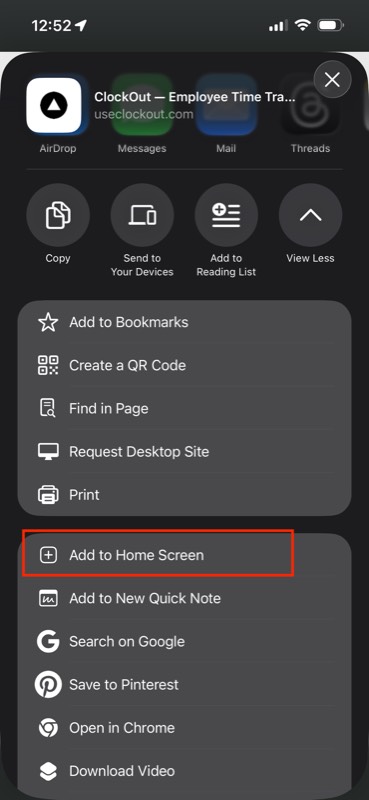
- 02Scroll down and tap Add to Home Screen.
- 03Tap Add in the top-right corner.
- 04The ClockOut icon appears on your home screen.
- 05Tap the icon to open ClockOut full screen.
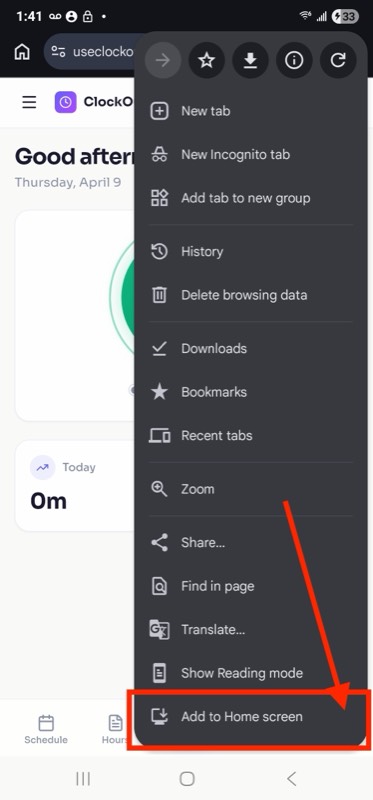
- 01Open useclockout.com in Chrome. Tap the three-dot menu ⋮ in the top-right corner, then tap Add to Home screen (some phones say Install app).
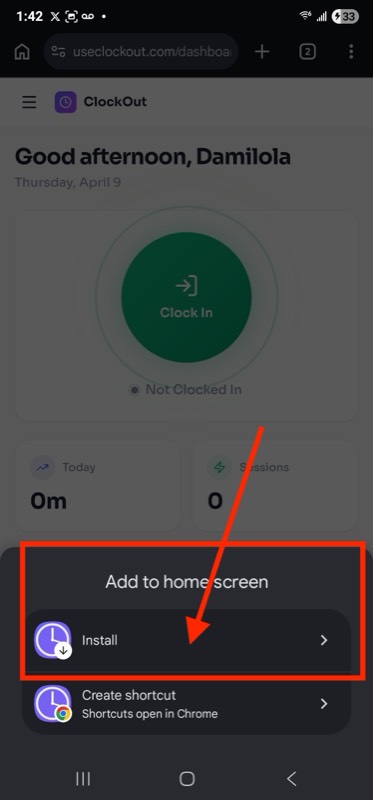
- 02Tap Install to add ClockOut as an app on your phone.
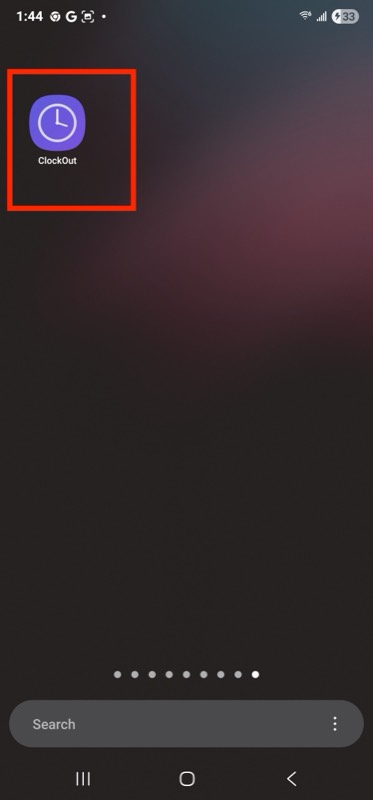
- 03The ClockOut icon appears on your home screen. Tap it to open the app.
Signing in
- Email and password. Sign in at useclockout.com/login. New staff never receive a password by email; they get a one-time setup link where they choose their own.
- Invite code. If your manager shared a code, tap Join your team on the login page (or go to useclockout.com/join), enter the 8-character code, your name, email, and a password.
- Forgot password? Use the link on the login page. The reset link is valid for 60 minutes and resetting signs you out of every device.
- Phone sign in with a text-message code is coming soon. Every account needs an email address today. Staff without a smartphone can use kiosk mode.
Set up your company Admin
After you register, ClockOut emails you a verification link (valid 24 hours). Click it, then a short onboarding wizard asks for your timezone and pay period, your first work location, and your first team members. Everything below lives under Manage›Settings and can be changed later.
1. General
Settings›General holds company name, timezone (all dates and “today” use it, so get it right first), and the locale set that was seeded from your country at signup:
- Pay period: weekly, bi-weekly, four-weekly, or monthly.
- Week starts on: the first day of every schedule and overtime week.
- Currency, language and format, time format (12-hour or 24-hour), and distance unit (miles or kilometers).
- Employee invite code, with a Copy button that copies the join link.
2. Time and rounding
- Round punches to the nearest no rounding, 5, 15, or 30 minutes (default 15). Rounding applies to the paid length of each shift; the exact punch times are always kept and shown.
- Auto clock out after N hours (default 12). A forgotten shift is closed automatically and both the employee and admins are notified.
3. Breaks
- Require a break after X hours and minimum break length (default 30 minutes after 6 hours; 0 disables). Shorter breaks count as missed. Starter
- Paid break minutes per shift (0 to 60). The first N minutes of break time per shift count as worked time on payroll; anything beyond is unpaid. Available on every plan.
- Break premium pay: when a required break is missed, late, or short, ClockOut drafts one hour at the regular rate for admin review in the pay run. Pro
4. Overtime
Overtime premium pay can be switched off entirely (it defaults on for US companies and off for UK and EU style setups). When on, set overtime after (usually 40 hours a week) and the multiplier (1.5 is time and a half). Daily overtime, daily double time, and seventh-consecutive-day rules are part of the compliance pack. Pro
These settings cover everyone by default. On Pro, a group that needs different overtime or break rules can follow a work rule set instead. Pro
5. Geofence and locations Starter
Require employees to be on site is the master switch. Search your workplace address or tap Use my current location while you are there, drag the pin on the map, and set a radius in meters (200 m is about a city block and works for most buildings and parking).
For more than one site, use Manage›Locations and Add location: up to 20 workplaces, each with its own address, radius (10 m to 10,000 m), schedules, and staff. Employees can clock in at any active location.
- Blocked employees see “You must be at the workplace to clock in” with their approximate distance. Admins get a notification and an audit entry.
- Owners, admins, and managers are never blocked. You can also mark individual employees as geofence-exempt.
- Clocking out away from the site is recorded, not blocked, and reported to admins.
- Optional auto clock out when employees leave the work area: set a leave distance (default about 1 mile) and a grace period (default 5 minutes). The employee gets an “Are you still working?” warning first, and returning cancels it.
6. Add your people
Option A: add them yourself.
- 01
Open the Team page
Go to Manage›People›Team and click Add employee. - 02
Fill in the basics
Name, email, phone (optional), role (Employee, Manager, or Admin), Pay type (Hourly with an hourly rate, or Salary with an annual salary), an optional location and department (where they work), and an optional birthday used for minor-labor rules. Tick Exempt from overtime for anyone who should never get overtime: their hours are still tracked, but no overtime or double time is calculated. Two extra switches: Exempt from geofence for mobile staff, and on Pro, Works from home sometimes with a private home address and radius. - 03
ClockOut emails a setup link
The one-time link is valid for 7 days. You can also copy it and send it yourself. - 04
They choose a password
The link opens a “Set your password” screen. After that they sign in with email and password.
Option B: share the invite link.
- 01
Copy the link
In Settings›General, find Employee invite code and click Copy. - 02
Send it to your employee
Text, email, or post it in your group chat. - 03
They join
They open the link, enter their name, email, and a password, and land in their own time clock. - 04
Set their rate
Invite-link joiners start as employees at $0/hr. Open them on the Team page and set the real hourly rate, or switch them to Salary.
Roles
- Owner: full access, billing, and the only one who can edit the owner account.
- Admin: everything except changing the owner. Can manage billing.
- Manager: runs the team day to day: approvals, schedules, timesheets, exceptions. On Pro, a manager can be scoped to one location or department so they see only their people (scoped roles): the staff whose location and department match theirs. A scoped manager schedules, approves, and fixes time for that team only, never sees pay rates, and does not get payroll, settings, or other company pages. Staff with no location are hidden from location managers, so place everyone first with Assign location on the Team page. Pro
- Employee: self-service only: clock, schedule, timesheet, requests, and the team tools.
To offboard someone, open their menu on the Team page. Deactivate keeps their history, blocks sign-in, and stops counting them as a seat. Remove deletes the account permanently (time entries and pay records are kept for payroll history).
7. Build the first schedule
Go to Manage›Schedule›Week and click Add shift: pick an employee, start and end time, the days it applies to, and optionally a position and notes. One person can have more than one shift a day as long as the shifts don’t overlap. Drag a shift onto another cell to copy it. Shifts are visible to employees as soon as you save; approved time off blocks a shift, and availability conflicts show a warning you can override. The full scheduling toolkit (templates, open shifts, positions, staffing plans, confirmations, budgets) is covered in Scheduling.
Add company holidays under Manage›Holidays. They show on everyone’s schedule and do not consume PTO. A holiday labels the day but does not close it, since plenty of businesses open on Labor Day. To close a day, add a Closed date change on the staffing plan.
For employees Employee
Your sidebar (or the bottom tabs on a phone) has Today, Schedule, Timesheet, Requests, Team, and Me. Anything your company’s plan does not include shows a small plan badge instead of opening.
Clocking in and out
Open Today and tap Clock in. That is it. When you are done, tap Clock out.
- Your location is recorded at the moment you punch and shown as a readable address (for example “Oak Avenue, Downtown”). Allow location when your phone asks.
- A live timer shows how long you have worked on this shift, with today, breaks, and this-week totals underneath.
- If your company uses job codes, pick one from the Job code list before you clock in. You can change it during the shift from your timesheet. Starter
- Hybrid staff with a home work area get a Working from home today toggle. Pro
- No signal? Clock in and out still work. The punch is saved on your phone with the original tap time and syncs when you are back online (breaks need a connection).
- Up next lists your next shifts, and Today’s log shows every punch so far.
Taking a break
While clocked in, tap Start break. The shift timer pauses. Tap End break when you are back. Unpaid break time is tracked separately and does not count toward your hours; if your company pays the first few minutes of each break, those count as worked.
Your schedule
Schedule shows the week with one row per day. Use the arrows or Today to move between weeks. Holidays carry a party-popper icon. Depending on your plan you will also see:
- Confirm and Decline on shifts you have not responded to. Decline asks for an optional reason. Shifts starting within 24 hours that are still unconfirmed get a reminder. Starter
- Swap on a shift: offer it to a coworker, they accept, your manager approves. Status shows as waiting on coworker, waiting on manager, approved, or denied. Starter
- A form to ask to work, or avoid, a position for a date range, which your manager reviews. Starter
- The Open shifts tab: shifts your manager posted without a name. Tap Claim to add one to your schedule. Starter
- The Availability tab: mark each day Available or Unavailable, set preferred start and end times, and a max weekly hours limit. Your manager sees this while building the schedule. Starter
- Notes your manager adds to a day (“Nicole’s last day”) and days the business is closed, on the web and in the app. Starter
- On the web, a My shifts | Team switch when your company shares the team schedule: a read-only month showing who works each position, by name only, with no pay. If you have a location, you see your own site. Starter
- A Training with label on shifts where you shadow a coworker while you learn a position.
Hours and pay
Timesheet shows Regular, Overtime, Total hours, and a Pay estimate at your hourly rate, a bar per day, and every punch. Expand a shift (“Show how this shift was counted”) to see punches, paid and unpaid break, rounding, and any manager edits with their reason.
- If you are exempt from overtime, your timesheet says so. Your hours are still recorded.
- If your company reviews timesheets, tap Submit week for approval once the week has started. You are notified when it is approved or sent back. Starter
- The Tips tab logs daily tips by source. Starter
- The Attendance tab is a month view of days worked, late days, and absences. Pro
Time off and corrections
On Requests, tap New request and choose Time off or Correction.
- Time off: start and end dates, type (vacation, sick, personal, other), and a note. Your manager approves or denies it and you get a notification and an email. Pending requests can be Withdrawn; approved future time off can be cancelled.
- Correction: forgot to clock in, forgot to clock out, wrong time, or another issue, with the date and the correct times. Your manager fixes the entry and you are notified.
- The Time off tab shows your balances by policy (available, accrued, used, carryover), pending requests, and any blackout dates. Starter
Team, tasks, and announcements
Team opens chat with your coworkers, plus Tasks assigned to you (tap Start, then Complete) and Announcements from management. All three need Starter or higher. See Chat, tasks, announcements.
Me
Me holds your Profile (name, phone, dark mode, password) and, on Pro, your Skills and certifications with expiry dates. See Profile and dark mode.
For managers Admin
Manage mode has seven areas in the sidebar: Today, Inbox, Schedule, Timesheets, People, Pay run, and Insights, plus a Manage group for Locations, Job codes, Job photos, Kiosks, Holidays, and Settings. Each area has tabs across the top. Press ⌘K (Ctrl+K on Windows) anywhere to jump to a page or a person.
Today: who is working right now
- Overview is the live board: who is on the clock and since when, who is on break, who is due, who is off today, and a Late badge on anyone who clocked in more than 5 minutes after their scheduled start. Three numbers up top: on the clock, hours so far, and labor today. A Needs you card collects pending requests and open exceptions. Your own clock-in controls are here too.
- Timeline lays the day out on a time axis per person.
- Exceptions collects attendance problems automatically. See Exception inbox. Starter
- Punch log is the per-day drill-down: every punch with its address and coordinates, its source (phone, web, kiosk, offline), the job code, any late or off-site reason the employee gave, kiosk photos, and every edit with who made it and why.
Fixing a punch
Edit any entry from the punch log or a timesheet. Every edit keeps a history: before, after, who, and why, and the employee is notified. Entries inside an approved timesheet week or a locked pay run cannot be edited until the week is reopened or the run unlocked.
Inbox: approvals
- Requests: pending time-off requests, corrections, and shift swaps in one queue, with a Resolved view for history. Approve or Decline, optionally with a note the employee sees. They are notified with the result.
- Timesheets: weeks employees submitted. Approve week locks the week against edits; rejecting requires a reason and sends it back so they can fix and resubmit. You can reopen an approved week later. Starter
- Time off: PTO policies, balances, and blackout dates. See Time off and PTO. Starter
People
Team is where you add, edit, deactivate, and remove staff and set pay (hourly or salary), overtime exemption, roles, and manager scope. On Pro, use Assign work rules to put several people on a work rule set at once. The other tabs, Skills, Tasks, Announcements, Chat, Compliance, and Work rules, are covered in their own sections below.
Clocking in yourself
Owners and admins have a time clock too. Tap Switch to my time at the bottom of the sidebar to see your own Today, schedule, and timesheet, and Switch to manage to come back.
Notifications Starter
ClockOut notifies people in-app (the bell in the sidebar), by push on the installed app, and for a few important events by email. There are no SMS notifications. The bell and push alerts need Starter or higher.
Employees are notified when
- A time-off or correction request is approved or denied (also by email)
- A shift starts in about an hour, and every evening for tomorrow’s schedule
- A shift starting within 24 hours still needs confirming (one reminder per shift)
- A scheduled clock-in was missed (15 minutes after the shift starts, checked for each shift)
- They may have forgotten to clock out (30 minutes past scheduled end, or 10 hours on the clock)
- They were auto clocked out, or left the work area with auto clock-out on
- They are approaching weekly overtime (also by email)
- A timesheet was approved, rejected, or reopened; a time entry was edited
- A swap was requested, approved, declined, or cancelled
- A task was assigned, an announcement was posted, a chat message or @mention arrived
- A certification expires within 30 days
Admins and managers are notified when
- Someone submits a time-off request, correction, swap, rotation request, or weekly timesheet
- Someone clocks in late, is blocked by the geofence, clocks out off site, or leaves the work area
- Someone is approaching overtime or hits a compliance rule
- An open shift is claimed, a shift you scheduled is declined, a task you created is completed, or a skill needs review
- An offline punch synced into a locked pay period and was not applied
Turning on push notifications
- 01
Install ClockOut on your phone
The native app or the home-screen web app, see Get the app. On iPhone, web push only works in the home-screen app, not in a Safari tab. - 02
Open the app and sign in
The Today page shows a card titled “Turn on push notifications”. - 03
Tap Turn on
Then allow notifications when your phone asks. If you blocked them earlier, re-enable them in your phone’s Settings for ClockOut.
Scheduling Admin
Everything lives under Manage›Schedule, with tabs for Week, Templates, Positions, Staffing plan, and Labor budget.
The week board
- Add shift opens a panel: employee, start, end, days, optional position, optional notes. Pick several days to create the same shift on each.
- Split shifts: add a second shift the same day for the same person, for example mornings with Dr. A and afternoons in Treatment. Shifts that don’t overlap are simply added. Lateness, no-shows, and reminders are judged per shift, and working a back-to-back day on one punch is fine.
- Training shifts: turn on Training shift in the shift panel and pick who they are Shadowing. A training shift doesn’t count toward the staffing plan or the rotation tally, and the trainee doesn’t need to be set up for the position yet. With positions, the month view shows the pair as “EA + ER”.
- Drag a shift onto another cell to copy it to another day or person. Click a shift to edit or delete it.
- Approved time off blocks the save outright. Availability blocks, preferred hours, and weekly hour limits show a warning with the details and a Schedule anyway choice.
- Shifts are visible to employees immediately. There is no separate publish step.
- Each shift shows a confirmation indicator once shift confirmation is on: a green check when confirmed, a grey dot while pending, and a red cross with the reason in the tooltip when declined. Changing a shift’s times resets it to pending. Starter
Open shifts and swaps Starter
The Open shifts row on the board takes shifts with no name: date, start, end, optional position and notes. Every eligible employee sees them and the first to tap Claim gets it; you are notified. Expired open shifts close on their own. Employee-initiated swaps land in your Inbox for approval after the coworker accepts. When a shift has a position, only people who may work that position can claim it or swap into it.
Templates: recurring shifts Starter
Build the standard week once on the Templates tab with Add template: employee, day of week, start and end, and an optional fixed position (the receptionist who always works Front Desk). Every day, ClockOut generates the coming week’s shifts from the templates and skips any that would overlap a shift already on the board. A staffing plan counts a template’s fixed position as covered.
Positions and fair rotation Starter
Click New position on the Positions tab to define stations and roles (register, line, front desk), optionally tied to one location and to required skills, so only qualified people are offered it. To limit a position to certain people, set Who can work it to Only people you pick and tick them under Who can work where; they still need any required skills. Assign positions to shifts, and the Rotation tally shows who has worked each position, in shifts or hours, over a trailing window (4 to 26 weeks, default 12) so desirable and undesirable shifts rotate fairly. Employees can ask to prefer or avoid a position for a date range from their schedule page; you approve or deny those under Rotation requests. Archived positions stay on past shifts but cannot be assigned again.
Staffing plan Starter
The Staffing plan tab says how many people each position needs, and when. Create your positions first.
- 01
Create a day template
Click New template and name it (Regular day, Surgery day, Saturday). For each position, set Fewest and Most (a range like 1-2 in Treatment) and the hours it is needed, so a part-day need like Treatment 13:00-18:00 works too. On Pro, a row can also require at least a number of people with a skill, like one credentialed technician on surgery. - 02
Pick its weekdays
Each weekday follows one template. A template with no weekdays is kept for single dates. If you have more than one location, a template can belong to one location. For the days you are always closed, make a template with Closed day turned on and give it those weekdays (Sun and Thu): nobody is scheduled, auto-fill skips them, and the board shows them as closed. - 03
Change single dates
Click Add date change, or a day under Next two weeks, and choose what happens: Another template (this Friday is a surgery day), Custom (Dr. B is out), Closed, or Note only, which keeps the usual plan and adds a note (“Nicole’s last day”) that shows on the board and on staff schedules, web and app. Company holidays label the schedule but don’t close it; to close a holiday, add a Closed date change. - 04
Check the next two weeks
Each day shows its template and whether it is covered or how many people short it is.
Coverage by position Starter
The week board has a People | Positions switch. The Positions view lists each need in the plan, who fills it, and what is missing. Click Fill on a gap to see who can take it, best first: the fewest recent hours at that position, free then, not on time off, and under their weekly limit. Assign someone in one click or post the gap as an open shift. It is the quickest way to cover a sick call.
Month view by position Starter
Switch the board from Week or Day to Month to read the month the way a paper schedule does. Each day lists its stations and who is on them by short name (“Front: LC, MH”, “Rm J: EA + ER, HH”, “Tx: OJ, Sasha PM”), with part-day people marked AM or PM, plus the plan’s label, holidays, notes, closed days, and how many people each station is short. Click a day to open it in the Day view by position.
- Print month prints the month on one landscape page for the break room. The printed copy leaves off the gap counts.
- Short names come from the Short name field when you edit someone on the Team page (“LC”, “Sasha”). Leave it blank to use initials.
- To share the month with staff, turn on Staff can see the team schedule in Settings›Schedule. Everyone gets a read-only Team tab on their web schedule with names and positions only, no pay. Staff with a location see their own site.
Labor budget Pro
- 01
Pick a week and location
On the Labor budget tab, use the arrows or Today. Weeks follow your company week start. Each location can have its own target. - 02
Enter targets
A target in hours, dollars, or both, plus a note, then Save budget. - 03
Watch the bars
Scheduled hours and projected cost (hours × hourly rate) against your target. Bars turn amber above 90% and red above 100%. A per-employee breakdown shows where the money goes, and the same bar appears above the week board.
AI coach and auto-fill Pro
The board’s overflow menu has Auto-fill week. With a staffing plan, it fills the plan’s open spots for 1, 2, or 4 weeks.
- It rotates fairly: whoever has done the least of each position lately goes first, sized to how much each person works, so part-timers are treated fairly. People who can only work one position (a receptionist on Front Desk) keep it, and everyone else rotates through the rest. Weekends are shared out too.
- It respects availability, approved time off, max weekly hours, and rotation requests (prefer or avoid), and avoids overtime unless nothing else works.
- It keeps the shifts already on the board and only fills gaps. It can give a position to someone already scheduled, splitting a 7:30-18:00 shift into Dr. A in the morning and Treatment in the afternoon.
- You review every drafted shift and save the ones you want. Spots it cannot fill are listed with the reason.
Without a plan, auto-fill drafts a week from last week’s pattern, availability, time off, required skills, and the rotation tally, with a fairness check and a reasoning note; click Apply to put the draft on the board. AI coach analyzes the week you are looking at: coverage gaps, projected cost against budget, people nearing overtime, single-coverage risk, and suggested swaps. Nothing changes until you accept it.
Fair workweek notice
If your city or state requires advance schedule notice, Settings can require N days of notice and flag changes made inside that window. Pro adds predictability-pay flagging on those changes.
Time off and PTO
Time-off requests and approvals work on every plan. Balances, accrual, and blackout dates need Starter or higher.
Policies Admin Starter
Manage›Inbox›Time off has four tabs: Policies, Balances, Holidays, and Blackout dates. Create policies such as:
- Vacation: accrues 10 hours a month, max 120 hours, 40 hours carryover
- Sick leave: accrues 4 hours a month, no carryover
- Personal days: yearly grant, use it or lose it
Each policy has an accrual rate (monthly, bi-weekly, or yearly), a maximum balance, a carryover limit (0 means use it or lose it), and an optional negative balance allowance. Accrual runs daily; year-end carryover applies on January 1 in your timezone.
Assigning and adjusting
Assign policies to people, optionally with a starting balance for mid-year hires. Manual adjustments need a reason and are logged. Add blackout dates for periods when requests are not accepted (holiday season, inventory week).
How approval affects balances
Approving a request deducts business days × 8 hours from the policy that matches the request type, skipping weekends and company holidays. Cancelling restores exactly what was deducted. If the balance is too low, approval is blocked unless the policy allows going negative. If the employee has no policy of that type, the request is approved with nothing deducted.
On Pro, approved time off that drew on a PTO balance shows as PTO hours in the pay run, with PTO pay for hourly staff, and fills the PTO Hours column in payroll exports. See Payroll and reports. Pro
Payroll and reports Admin
ClockOut calculates hours, breaks, overtime, and estimated pay, then exports files your payroll provider imports. It does not calculate tax withholding, file taxes, or move money.
The payroll report
Manage›Pay run›Reports (also under Insights) is available on every plan. Move week by week (weeks follow your pay-period start) and see every employee with hours, overtime, rate, and pay, including salary and PTO, plus totals. Everyone appears, even with zero hours. Other reports on the same page:
- Hours by job code for client or project billing. Create codes (a name plus an optional short code) under Manage›Job codes. Starter
- Tips by employee and day. Starter
- Mileage between visits: straight-line distance between one clock-out and the next clock-in on the same day (not route distance; legs under 150 m are ignored as GPS noise), with its own CSV. Built for home care, cleaning, and field teams. Pro
- Ask the data: a plain-English question box, such as “who worked more than 45 hours last month”. Typing a question into the ⌘K search takes you here too. Pro
Exporting
- CSV on every plan: name, email, rate, hours worked, regular and overtime hours, work-from-home hours, regular, overtime, and total pay, then pay type, salary pay, PTO hours, and PTO pay. Opens in Excel, Google Sheets, or your payroll provider’s import.
- PDF for a formatted report. Pro
- Payroll formats for RUN Powered by ADP, Gusto, QuickBooks Time, Xero, and Sage Payroll. These are files you download and upload to your provider. There is no direct connection to Gusto or any other payroll provider: a direct Gusto push is built but switched off until ClockOut has a Gusto partner account. Approved PTO fills the PTO Hours column, and the ADP and QuickBooks files add PTO Hours and Salary Amount columns when you have PTO or salaried staff. Pro
Payroll runs Pro
For a durable, auditable record, use Manage›Pay run›Payroll instead of the report:
- 01
Create
Run payroll for the current pay period, or Custom dates. Periods cannot overlap an existing run. - 02
Preview
Hours and pay per employee, including salary and PTO hours, plus any pending pay adjustments such as break premiums. - 03
Approve and lock
Takes a permanent snapshot. Time entries in the period can no longer be edited. An admin can reopen a locked run to make corrections, and a draft run can be deleted. - 04
Export
Download CSV in the standard ClockOut format or your provider’s. Once exported, a run stays closed.
Overtime, rounding, and breaks in the numbers
- Overtime follows your settings, by default anything over 40 hours a week at 1.5×. Daily overtime, double time, and seventh-day rules apply on Pro. People on a work rule set follow that set instead, and people marked exempt from overtime never get overtime.
- Salaried staff: in pay runs, the salary is spread over the pay period, starting the day someone became salaried. Overtime for a salaried employee who is not exempt is paid at the weekly salary divided by the weekly overtime threshold. Pro
- PTO: approved time off that drew on a balance counts as PTO hours, never toward overtime. Pro
- Rounding applies to each shift’s worked length, not the punch times: with 15-minute rounding, 7 hours 52 minutes is paid as 8 hours, and 7 hours 37 minutes as 7 hours 30 minutes. The exact punches and the rounding delta stay visible on the timesheet.
- Paid breaks: the first N minutes of break per shift are counted as worked, the rest is unpaid.
Exception inbox Admin Starter
Manage›Today›Exceptions finds attendance problems for you. Every 30 minutes ClockOut checks for:
- No-show (always high severity): scheduled, no clock-in 30 minutes after start, unless they are on approved time off
- Late arrival: more than 5 minutes late; severity rises at 15 and 30 minutes
- Early leave: clocked out 30 or more minutes before the scheduled end
- Break violation: worked past the required break threshold, or a missed meal, rest, or consecutive-days rule Pro
- Auto clock-out: a forgotten shift the system closed (always high)
- Geofence violation and missed punch, raised as they happen
For each one, Acknowledge, Resolve, or Dismiss. Filter by Open, Acknowledged, Resolved, Dismissed, or All, and tick several rows to resolve or dismiss them in bulk. Every resolution is written to the audit log. On Pro, Summarise turns the open queue into a short brief and Anomaly scan looks 30 days back for patterns such as repeated lateness, GPS variance, or unusual edit counts.
Kiosk mode Admin Starter
A shared tablet at the door where staff clock in and out with a PIN. No logins, no app installs, no personal phones.
- 01
Turn the kiosk on
Go to Manage›Kiosks and flip the switch to On. - 02
Give everyone a PIN
In the Employee PINs card on the same page: 4 to 6 digits, unique within your company. - 03
Set up the tablet once
The page shows the Kiosk URL: useclockout.com/kiosk/your-company-slug. On the tablet or computer at the door, sign in to ClockOut as an owner or admin, open that URL, and tap Set up this device as a kiosk. You are signed out on that device when setup is done, so it does not stay signed in as you. Repeat this on each kiosk device. - 04
Clock in
Employees type their PIN on the number pad and tap Clock in or out; ClockOut works out which one and shows a confirmation with their name.
- Staff cannot clock in on a device that has not been set up. Set-up devices are listed under Paired devices on the same page; Unpair stops one from working as a kiosk right away.
- Ten wrong PINs in 15 minutes pause that kiosk briefly.
- Photo capture (optional): a front-camera snapshot at clock-in, with a live preview, so you can eyeball who punched from the punch log. It is a plain photo, not face recognition. If the camera is blocked, the punch still goes through.
- Geofencing: when it is on, the kiosk asks the tablet for its location before each punch. A clock-in from outside the work area is refused. A clock-in with no usable location still goes through and is flagged in the exception inbox for review, so allow location on the tablet during setup.
Compliance and work rules Admin Pro
Manage›People›Compliance holds rules that are checked every 2 hours. Violations land in the exception inbox and notify managers.
- Meal break: X minutes after Y hours (California style: 30 minutes after 5 hours)
- Rest break after a set number of hours
- Daily overtime and weekly overtime alerts; daily double time and seventh-consecutive-day pay rules live in Settings›Overtime or a work rule set
- Max hours per day and max hours per week
- Consecutive days worked
- Minor labor: a daily cap for staff under 18, using the birthday on the employee record
Missed meal, rest, and consecutive-day rules create exceptions; the hour caps and overtime rules notify managers (and the employee, for the daily cap) without cluttering the inbox. Each rule’s Applies to can be Everyone or one work rule set.
Work rules for different groups Pro
Manage›People›Work rules lets different groups follow their own overtime and break rules, such as an office on weekly overtime only and a site crew on overtime after 8 hours a day. People on a set follow its rules instead of Settings; people on no set follow Settings.
- 01
Create a set
Click New rule set and give it a name. - 02
Choose its overtime
Pay overtime on or off, its own weekly threshold, daily overtime, double time, and the 7th day in a row rule (calendar days only). Two Nevada options: count a day as 24 hours from first clock-in, and apply daily overtime only to people paid under an hourly rate you set. - 03
Choose its breaks
Use company rule, No break rule, or Custom: a break of at least Y minutes after X hours. - 04
Put people on it
On the Team page, pick the set under Work rules when you edit someone, or use Assign work rules for many people at once. Each person follows one set at most.
A set applies to a person, not to a location. Anyone marked exempt from overtime never gets overtime, whatever their set says. Deleting a set moves its people back to Settings and turns off any compliance rule limited to it.
Premiums and signatures
- Break premium pay: a missed, late, or short required break drafts one hour at the regular rate as a pending pay adjustment for review in the pay run, once per employee per day.
- Attestation: employees certify their hours when submitting a week (“I certify these hours are accurate and complete”) and acknowledge time edits made by a manager. Signatures are stored with a timestamp and statement.
- Predictability pay flagging for schedule changes inside your notice window.
Chat, tasks, announcements Starter
Team chat
An Everyone channel for the whole company, one channel per site once you have two or more locations, and direct messages with any coworker (New message). On web it is Team for employees and People›Chat for managers; in the mobile app it is under More. Messages up to 2,000 characters, file attachments, @mentions by first name, unread counts, and the option to delete your own message. Mark a message as a Handover note to flag it for the next shift. Direct messages notify the other person; channel messages only notify people who are @mentioned.
Tasks and document sharing
Admin Under People›Tasks, click New task: title, description, priority (low, normal, high), due date, an assignee, and an attachment: upload a file (PDF, image, document, spreadsheet, up to 10 MB) or paste a link. The list filters by Open, In progress, Done, and Cancelled; overdue due dates show in red, and clicking a status badge moves the task forward. The assignee is notified in-app and by push, and you are notified when they complete it.
Employee On Tasks, tap Start to move a task to in progress and Complete when it is done. Attachments open in a new tab.
Announcements
Admin Under People›Announcements, write a title and body, tick Pin to top for the important ones (pinned items always sort first), and set an expiry for time-sensitive notices. Every active employee gets an in-app and push notification. On Pro, Draft with AI fills in a title and body you can edit before posting.
Employee The newest unread announcement shows as a banner on Today. The Announcements feed lists pinned items first; click one to mark it read or use Mark all read.
Tips
Employee On Tips, tap Add tip: date, amount, source (Cash, Card, Pool, Other), and a note. Cards show this week and this month, and past entries can be edited.
Admin Timesheets›Tips is read-only: pick This week, Last 7, This month, or your own dates and see total tips, entries, people, and average per day, a breakdown by employee, a chart by day, and Export CSV.
Skills and certifications Pro
Admin Under People›Skills, build a catalog (food handler card, forklift, CPR, licenses) with a name, type (skill or certification), and description. The Assignments table lists every employee; click a row to either record something they already hold (attained and expiry dates, an uploaded certificate or link, notes) or assign it so they complete it and submit proof. Submissions land in the Needs review queue, where you approve or send them back. Positions can require a skill so scheduling only offers qualified people, and on Pro an AI action plan drafts what to do about everything expiring in the next 30 to 180 days.
Employee Me›Skills shows each item with an expiry pill: muted beyond 30 days, amber at 8 to 30 days, red at 7 days or fewer, and “Expired” after. Use Request to add to ask admins about a missing skill.
Insights, AI, and API Admin Pro
- Analytics (Manage›Insights): the last 4, 8, or 12 weeks of hours worked against scheduled, labor cost, overtime, and late arrivals, with charts per week and a table per employee (hours, overtime, shifts, average shift, lates, scheduled vs actual, estimated cost).
- AI coach: the schedule coach and auto-fill on the week board, Ask the data on Reports, exception summaries and anomaly scans, announcement drafting, and action plans for expiring certifications. It suggests; a person reviews and applies.
- API access (Settings›API access): Create token makes a read-only bearer token (shown once, up to 10 active, revocable) for
GET /api/v1/time-entries,/api/v1/schedules, and/api/v1/team. The base URL, an example request, and the paging rules are shown in the same card. - Recent activity (Settings›Activity, every plan): the audit log of settings changes, people changes, pay changes, and token events, with who and when.
Plans and billing
Three plans. Anything your plan does not include shows a lock badge in the app; clicking it explains the upgrade.
| Free | Starter $19/mo | Pro $39/mo | |
|---|---|---|---|
| Active accounts | 2 max | Unlimited | Unlimited |
| Clock in/out with GPS stamp and address | ✓ | ✓ | ✓ |
| Basic scheduling, holidays, pay estimates | ✓ | ✓ | ✓ |
| Time-off and correction requests | ✓ | ✓ | ✓ |
| CSV export, offline punches, dark mode | ✓ | ✓ | ✓ |
| Hourly or salaried pay, overtime-exempt staff | ✓ | ✓ | ✓ |
| Geofence enforcement | ✗ | ✓ | ✓ |
| Multiple locations | ✗ | ✗ | ✓ |
| Recurring templates, open shifts, swaps, confirmations | ✗ | ✓ | ✓ |
| Positions, fair rotation, staffing plans, month view | ✗ | ✓ | ✓ |
| In-app, email, and push notifications | ✗ | ✓ | ✓ |
| Overtime alerts and break compliance | ✗ | ✓ | ✓ |
| PTO balances and accrual | ✗ | ✓ | ✓ |
| Exception inbox, availability, timesheet approvals | ✗ | ✓ | ✓ |
| Kiosk mode | ✗ | ✓ | ✓ |
| Team chat, tasks, announcements, tips | ✗ | ✓ | ✓ |
| Job costing | ✗ | ✓ | ✓ |
| Payroll runs and ADP, Gusto, QuickBooks, Xero, Sage formats | ✗ | ✗ | ✓ |
| Compliance rules, daily OT, double time, attestation | ✗ | ✗ | ✓ |
| Work rules for different groups | ✗ | ✗ | ✓ |
| PTO and salary in pay runs and exports | ✗ | ✗ | ✓ |
| Scoped roles and departments | ✗ | ✗ | ✓ |
| Skills and certifications | ✗ | ✗ | ✓ |
| Labor budgeting and forecasting | ✗ | ✗ | ✓ |
| Staff analytics, monthly attendance, PDF export | ✗ | ✗ | ✓ |
| Mileage between visits, remote work | ✗ | ✗ | ✓ |
| AI coach and API access | ✗ | ✗ | ✓ |
Prices are in USD. Starter is $19 a month and Pro is $39 a month, and each covers up to 5 active accounts. Every active account above 5 adds $3 a month on Starter or $6 a month on Pro. Every active account counts as a seat, including the owner and admins. Workspaces that subscribed before 29 Aug 2026 keep their original per-account prices ($3 Starter, $5 Pro) for as long as they stay subscribed; Settings shows a Legacy pricing row when that applies.
Upgrading
Go to Settings›Billing and pick a plan. Every account starts with a 14-day Starter trial, no card needed. Choosing Pro charges the card when you subscribe; a Starter checkout during the trial keeps the days left and is charged when the trial ends. Adding people mid-cycle prorates onto the next invoice; deactivating or removing people lowers it. Only the owner or an admin can change billing.
Monthly or annual
Choose Monthly or Annual on the pricing page or in Settings›Billing before checkout. Annual takes 20% off (two months free): Starter works out to $15.20 and Pro to $31.20 a month for up to 5 accounts, billed yearly. Existing subscribers switch with Switch cycle, which opens the Stripe portal and prorates the change.
Managing your subscription
Manage billing in Settings opens the Stripe portal to update your card, download invoices, or cancel. Access continues until the end of the paid period, then the company drops to Free. See the refund policy for the details.
Profile and dark mode
Open Me›Profile to:
- Update your name and phone. Your email is shown but changed by an admin.
- Toggle Dark mode. Available on every plan.
- Change password: 8 to 128 characters with an uppercase letter, a lowercase letter, a number, and a symbol. Changing it signs you out of every other device.
In the mobile app, the profile screen adds an appearance setting (system, light, or dark), arrival alerts, and an app lock with Face ID or passcode.